
Kyocera ECOSYS M2040dn ghost image or offset image on prints
Applies to: Kyocera ECOSYS M2040dn, Kyocera ECOSYS M2135dn, Kyocera ECOSYS M2635dn, Kyocera ECOSYS M2635dw, Kyocera ECOSYS M2735dw, Kyocera ECOSYS M2540dn, Kyocera ECOSYS M2540dw, Kyocera ECOSYS M2640idw
Quick answer
A ghost or offset image on a Kyocera ECOSYS M2040dn is a faint copy of the image repeated lower on the page. It comes from the print engine, not the scanner. Start by using paper within the spec and setting the media type to match it. If ghosting stays, a technician runs Drum Refresh and checks the fuser belt.
What is happening?
Offset images are listed only under engine factors, so the test page will show them too. Kyocera checks two areas. In the paper path: paper type, media type, a dirty transfer roller or fuser belt, the high voltage PWB and a scratched fuser belt. In image forming: a dirty or worn drum and a dirty or worn developer roller. The same checks apply to all eight models in this service manual.
What causes it?
Paper or media type
Paper outside the spec, or a media type that does not match the paper type and weight.
Dirty transfer roller or fuser belt
Seen as a repeat at the roller or belt circumference.
High voltage PWB
A faulty high voltage PWB.
Scratched fuser belt
The fuser belt surface is scratched.
Drum
A dirty drum surface, or one worn or scratched.
Developer roller
A dirty developer roller, or one worn or scratched.
What can you check yourself?
- 1
Check the paper
Use paper within the spec, or choose the closest media type.
- 2
Set the media type
In the System Menu, set the media type to match the paper type and weight in the cassette or MP tray.
- 3
Print the test page
Go to System Menu > Adjustment/Maintenance > Service Setting and print the Test Page (a grey halftone sheet). If the fault is on the test page, the printing engine is the cause. If the test page is clean and only copies or scans show it, the scanner is the cause.
- 4
Run Drum Refresh
If you can reach Service Setting, run Drum Refresh and print again.
Steps for a technician
- 1
Paper and settings
Replace unsuitable paper and set the media type for the paper type and weight.
- 2
Transfer roller and fuser belt
If the ghost repeats at one transfer roller turn, clean the transfer roller. If it repeats at one fuser belt turn, clean the fuser belt.
- 3
High voltage PWB
Replace the high voltage PWB.
- 4
Fuser unit
Fit a new fuser unit if the belt surface has scratches.
- 5
Drum
Run Drum Refresh. Replace the drum unit if the drum is worn or scratched.
- 6
Developer
Clean the developer roller. Replace the developer unit if the roller is worn or scratched.
Parts for this error
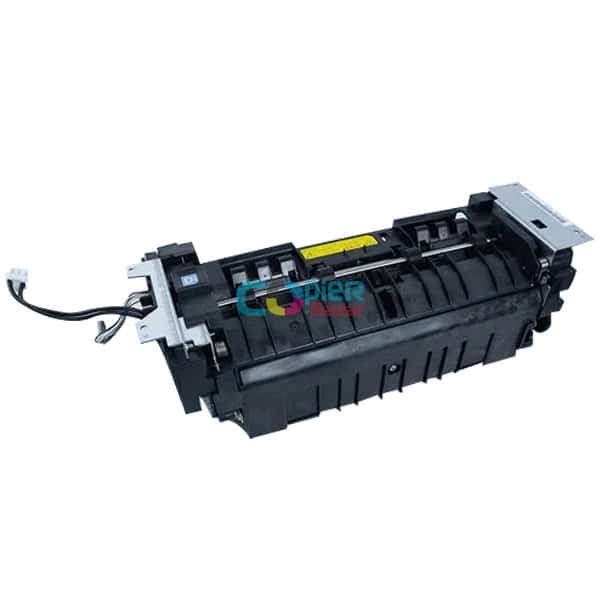
Fuser unit
Only if the check in step 4 finds a scratched fuser belt. The manual's measure is a complete fuser unit (the store calls it the fixing unit).
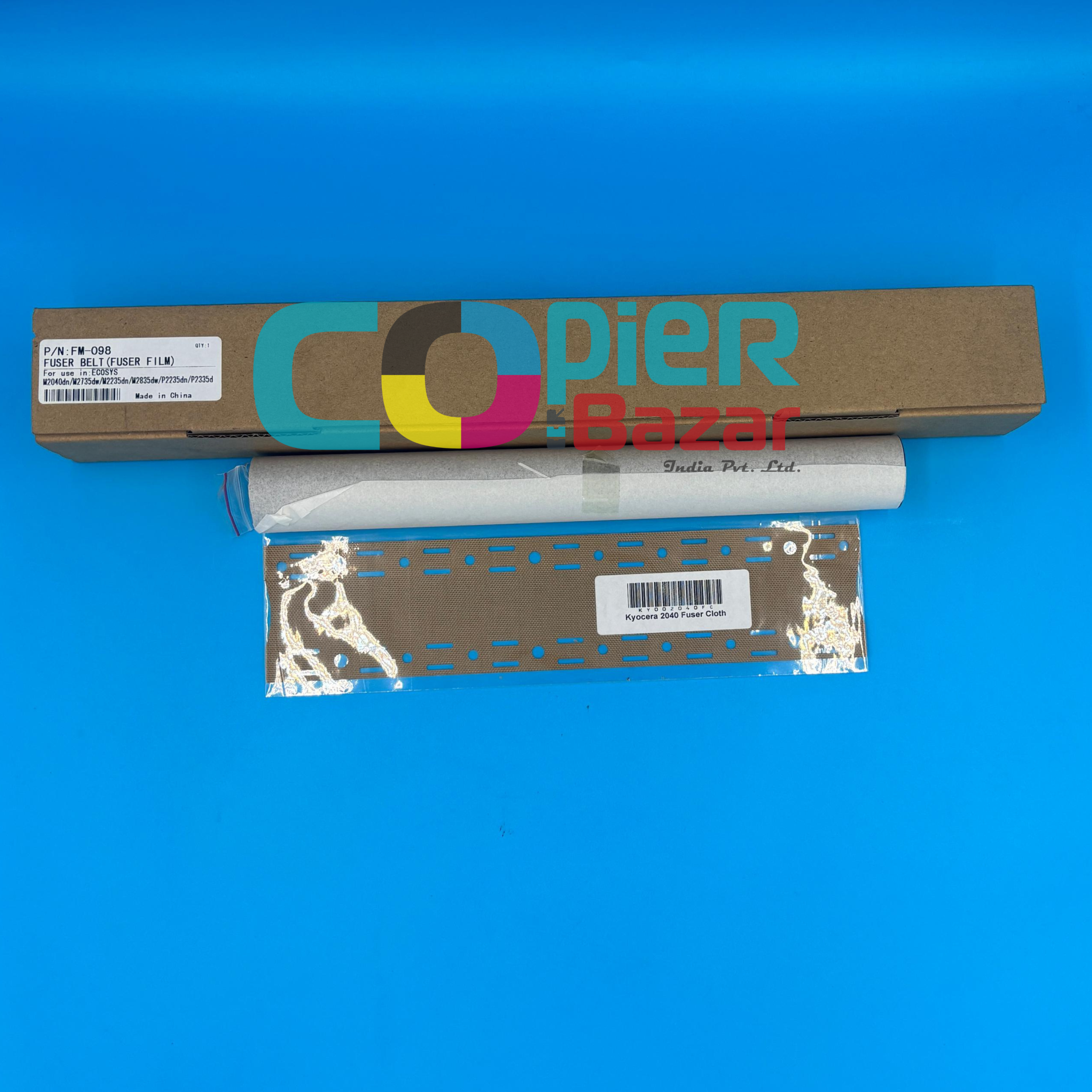
Fuser film sleeve
The manual names the fuser belt as the scratched part, but its measure is a whole fuser unit. A technician who rebuilds fuser units may choose to fit this film sleeve instead. That is not a Kyocera measure, so it is offered only as an option.
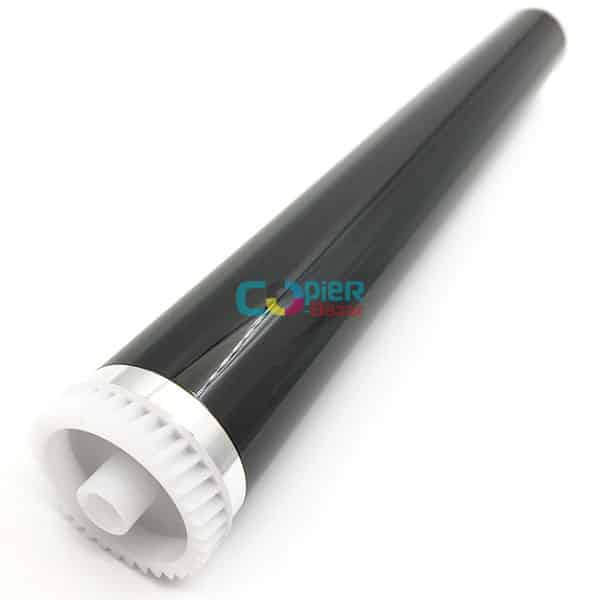
Drum unit (DK-1150)
Only if Drum Refresh does not help and the check in step 5 finds the drum surface worn or scratched. The manual's measure is a complete drum unit. Please confirm with us that this DK-1150 listing is the full drum unit for your model before ordering.
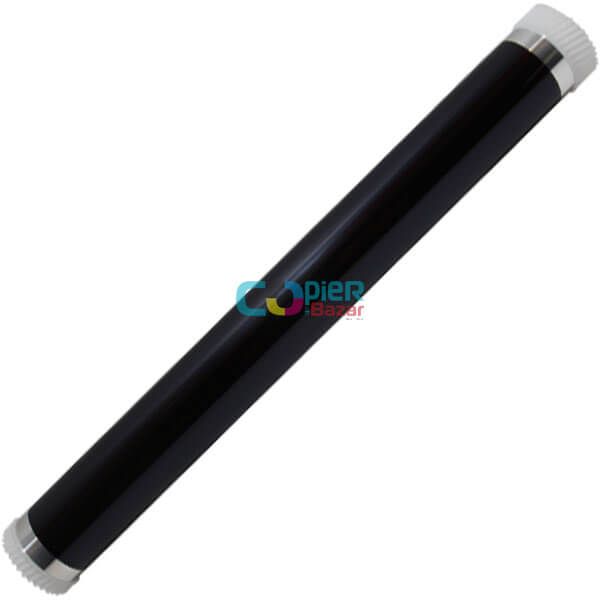
Drum only (without the unit)
For the same check as step 5. This is the photoconductor drum alone, not the complete drum unit that the manual replaces. A technician can fit it into your existing drum unit.
When should you call a technician?
Call a technician if ghosting stays after using paper within the spec and the right media type.
Questions people ask
- What causes ghost images on a Kyocera M2040dn?
- The Kyocera service manual lists paper and media type first, then a dirty transfer roller or fuser belt, the high voltage PWB, a scratched fuser belt, the drum and the developer roller.
- Is ghosting a scanner or printer fault?
- Kyocera lists offset images only under engine factors, so it is a printing fault and will show on PC prints and the test page as well.
- Do I need a new fuser for ghosting on Kyocera M2040dn?
- Only if the fuser belt surface is scratched. The manual checks paper, media type, cleaning and the high voltage PWB before that.