
Kyocera ECOSYS M2040dn J4012, J4013, J4018: registration sensor stay jam
Applies to: Kyocera ECOSYS M2040dn, Kyocera ECOSYS M2135dn, Kyocera ECOSYS M2635dn, Kyocera ECOSYS M2635dw, Kyocera ECOSYS M2735dw, Kyocera ECOSYS M2540dn, Kyocera ECOSYS M2540dw, Kyocera ECOSYS M2640idw
Codes covered on this page: J4012, J4013, J4018
Quick answer
Kyocera ECOSYS M2040dn codes J4012, J4013 and J4018 are registration sensor stay jams: a sheet stayed at the registration sensor too long inside the machine. Skewed paper or two sheets feeding together are likely causes. First clear the sheet, fan and reload the paper, set the guides and keep it under the limit mark.
What does J4012 mean?
The registration sensor should clear within a set time. The manual groups these three codes for two cases: paper from cassette 2 or 3, timed from when the PF feed sensor turns off, and paper from the duplex section, timed from when the registration sensor turns on. Following the numbering of the other jam codes, J4012 and J4013 match cassettes 2 and 3 and J4018 the duplex section. All three use the same checks: skew, multiple sheets, rollers, paper, then the registration sensor and registration clutch. The same code and steps apply to the ECOSYS M2135dn, M2635dn, M2635dw, M2735dw, M2540dn, M2540dw and M2640idw, which share one Kyocera service manual.
What causes J4012?
Paper caught or skewed
Debris or burrs on the conveying guide, width guides not set, paper above the limit, or uneven PF conveying pulley spring pressure.
More than one sheet fed
Crushed cut ends, or a dirty or worn feed roller and retard roller.
PF conveying roller and pulley
Dirty or worn, so the sheet is not carried on.
Paper problems
Bent, curled, wavy or unsupported paper, or paper with foreign matter.
Wiring, sensor, clutch or board
Loose registration sensor (YC16) or registration clutch (YC10) wiring, or a faulty registration sensor, registration clutch or main/engine PWB.
What can you check yourself?
- 1
Switch off before reaching inside
Turn the power switch off before you put your hands inside a cover or the cassette slot.
- 2
Clear the sheet
Open the front cover and pull out the cassettes as the panel shows, and remove the sheet and any scraps.
- 3
Set the paper guides
Slide the width guides (and length guide) so they touch the stack for the size you loaded. Do not fill above the limit mark inside the tray.
- 4
Fan and turn the stack
Take the paper out, fan it well and put it back the other way round, top edge to bottom. Remove any sheet with a bent or crushed edge.
- 5
Use paper within specification
Damp, wavy, curled or out-of-specification paper is a common cause. Use fresh, dry paper of a supported type and keep spare paper in a dry place.
- 6
Try again
Close all covers, switch on and print a few pages. If the same code keeps coming back, stop and call a technician.
Steps for a technician
- 1
Clear the conveying path
Look along the paper path for scraps of paper, foreign objects or burrs on the guides and actuators. Remove them, and replace a guide that cannot be cleaned up. Correct or replace any sheet material or film that is scratched, bent or lifting.
- 2
Set guides and stack height
Match the width guides to the paper and keep the stack within the upper limit label.
- 3
Check the press spring
Refit the PF conveying pulley press spring and correct or replace it if bent.
- 4
If more than one sheet fed
Fan crushed sheets and reload them reversed. Clean the feed roller and retard roller and replace them if worn.
- 5
Check the PF conveying roller and pulley
Clean their surfaces and replace them if worn.
- 6
Check the paper
Remove bent sheets and sheets with foreign matter, and correct curled, wavy or unsupported paper.
- 7
Check wiring
Reseat registration sensor (YC16) and registration clutch (YC10) on the main/engine PWB.
- 8
Check sensor, clutch and board
Clean the registration sensor and replace the high voltage PWB if it still fails. Refit or replace the registration clutch. Replace the main/engine PWB last.
Parts for this error
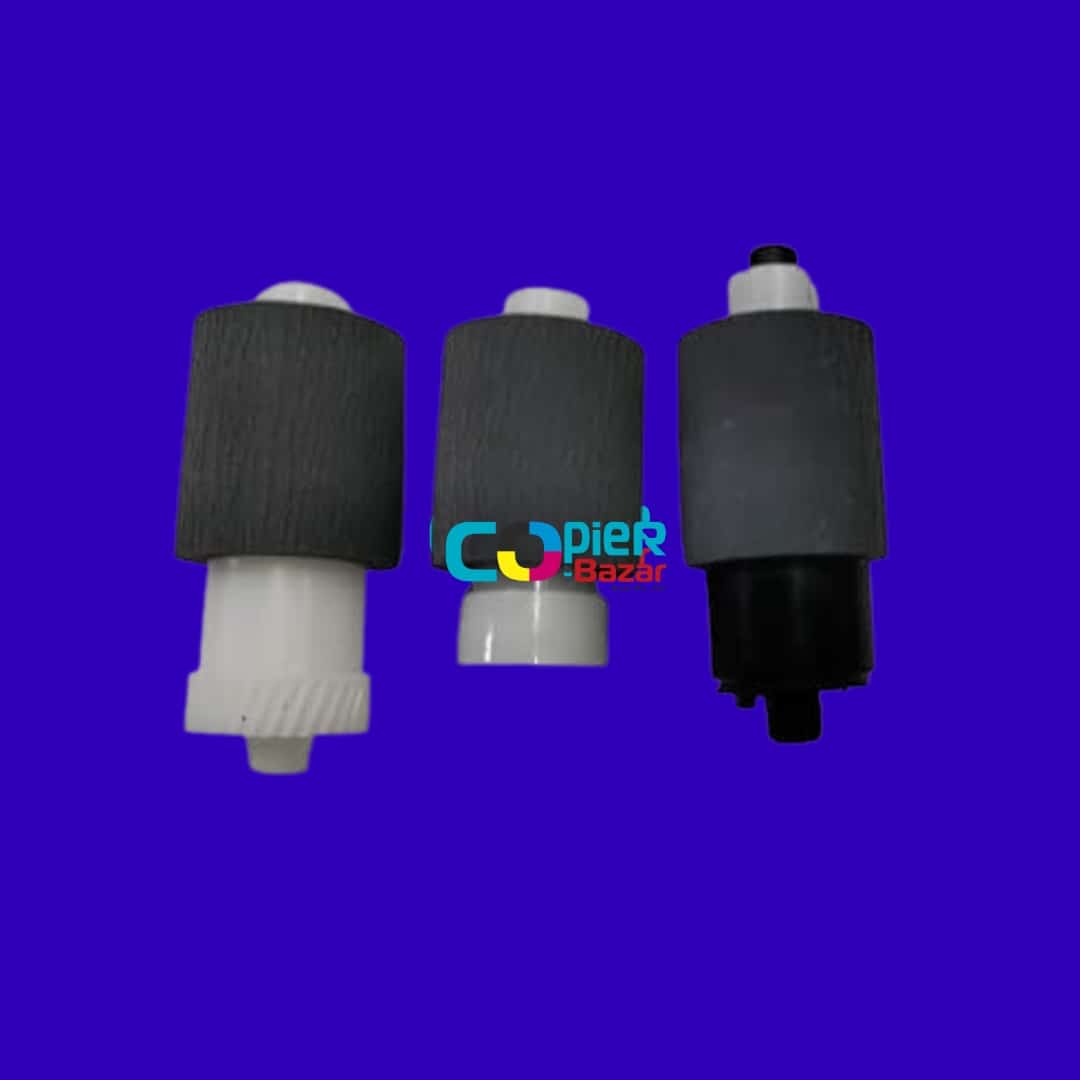
Pickup, feed and retard rollers (set of 3)
Only if step 4 finds the feed roller or retard roller worn after cleaning. The store listing is a set of three rollers with base for the main cassette and does not name each roller, so your technician should compare it with the worn parts first. These codes involve the optional paper feeder, so also confirm the fit there.
When should you call a technician?
Call a technician if J4012, J4013 or J4018 keeps returning with the guides set and good paper loaded.
Questions people ask
- What does J4012 mean on a Kyocera M2040dn?
- J4012 on a Kyocera ECOSYS M2040dn is a registration sensor stay jam: a sheet stayed at the registration sensor inside the machine for too long.
- What are J4013 and J4018?
- They are the same stay jam. The Kyocera manual covers paper from cassettes 2 and 3 and from the duplex section under J4012, J4013 and J4018, with one set of checks for all three.
- Can a double feed cause J4012?
- Yes. If more than one sheet fed, the manual says to fan the paper and clean or replace the feed roller and retard roller.