
Kyocera ECOSYS M2040dn J4201, J4202, J4203, J4208, J4209: paper did not reach the exit sensor (fuser jam)
Applies to: Kyocera ECOSYS M2040dn, Kyocera ECOSYS M2135dn, Kyocera ECOSYS M2635dn, Kyocera ECOSYS M2635dw, Kyocera ECOSYS M2735dw, Kyocera ECOSYS M2540dn, Kyocera ECOSYS M2540dw, Kyocera ECOSYS M2640idw
Codes covered on this page: J4201, J4202, J4203, J4208, J4209
Quick answer
Kyocera ECOSYS M2040dn codes J4201, J4202, J4203, J4208 and J4209 mean paper did not reach the exit sensor after the fuser. Usually the sheet jammed at or in the fuser, or wrapped around it. First let the printer cool, open the rear cover, remove the sheet gently and check the media type matches the paper.
What does J4201 mean?
The exit sensor sits after the fuser. These codes mean it did not turn on in time after the sheet left registration. The manual covers all five together for paper fed from cassettes 1 to 3, the duplex section or the MP tray; following the numbering of the other jam codes, the last digit (1, 2, 3, 8, 9) matches that paper source. The manual splits the checks by where the sheet stopped: before the fuser, in the fuser, wrapped around the fuser roller, or after the lower exit roller. The same code and steps apply to the ECOSYS M2135dn, M2635dn, M2635dw, M2735dw, M2540dn, M2540dw and M2640idw, which share one Kyocera service manual.
What causes J4201?
Jam before the fuser
Paper caught on the fuser entry guide or a scrap, guides not set, or the fuser roller not driven because the fuser unit is not seated, a drive gear is damaged or a bushing is worn.
Jam in the fuser
A bent exit sensor actuator, burrs or melted toner on the fuser exit guide, media type or size settings that do not match, curled, bent, wavy or unsupported paper, or debris on the press roller or fuser belt.
Paper wrapped around the fuser roller
If the leading edge margin is less than 4.0 mm, the leading edge timing needs adjusting with U034. With a normal margin, debris on the press roller or fuser belt is the cause.
Jam after the lower exit roller
A bent exit sensor actuator, a warped fuser exit guide, a worn lower exit roller or pulley, loose exit sensor wiring (YC19), a faulty exit sensor, load on the fuser belt, or the main/engine PWB.
What can you check yourself?
- 1
Switch off before reaching inside
Turn the power switch off before you put your hands inside a cover or the cassette slot.
- 2
Let it cool, then clear the sheet
Wait for the fuser to cool. Open the rear cover and pull the sheet out slowly in the direction it travels. Do not touch the fuser surfaces.
- 3
Match the paper settings
In the system menu, make sure the paper size and media type set for that tray match the paper actually loaded.
- 4
Use paper within specification
Damp, wavy, curled or out-of-specification paper is a common cause. Use fresh, dry paper of a supported type and keep spare paper in a dry place.
- 5
Set the paper guides
Slide the width guides (and length guide) so they touch the stack for the size you loaded. Do not fill above the limit mark inside the tray.
- 6
Try again
Close all covers, switch on and print a few pages. If the same code keeps coming back, stop and call a technician.
Steps for a technician
- 1
Before the fuser: check the entry guide
Remove scraps, foreign objects or burrs at the fuser entry, or replace the fuser entry guide. Correct or replace sheet or film that has come off. Set the width guides if paper skews.
- 2
Before the fuser: check the fuser drive
Seat the fuser unit so the main motor drive reaches the fuser roller. Replace a damaged fuser roller drive gear or a worn bushing.
- 3
In the fuser: check the exit actuator and fuser exit guide
For accordion jams, refit the exit sensor actuator and spring and correct or replace them if bent. Remove burrs or melted toner from the fuser exit guide, or replace the fuser unit.
- 4
In the fuser: check settings and paper
Set the correct media type. Use long grain paper if sheets curl. Remove bent sheets and sheets with foreign matter, correct wavy paper and use only supported paper.
- 5
Clean the press roller and fuser belt
Clean off foreign matter, or replace the fuser unit.
- 6
Wrapped with a margin under 4.0 mm
If the margin shift is regular, run U034 to adjust the leading edge timing. Then check guides, paper and the press roller and fuser belt as above.
- 7
Wrapped with a margin of 4.0 mm or more
Clean the press roller or replace the fuser unit.
- 8
After the lower exit roller
Refit the exit sensor actuator and spring if paper skews. Refit or straighten the fuser exit guide, or replace the fuser unit. Clean the lower exit roller and pulley; if worn, replace the fuser unit. Check the paper.
- 9
Check exit sensor wiring and parts
Reseat exit sensor to main/engine PWB (YC19). Clean and refit the exit sensor; if it still fails, replace the fuser unit that includes it. If load on the fuser belt is the cause, replace the fuser unit. Replace the main/engine PWB last.
Parts for this error
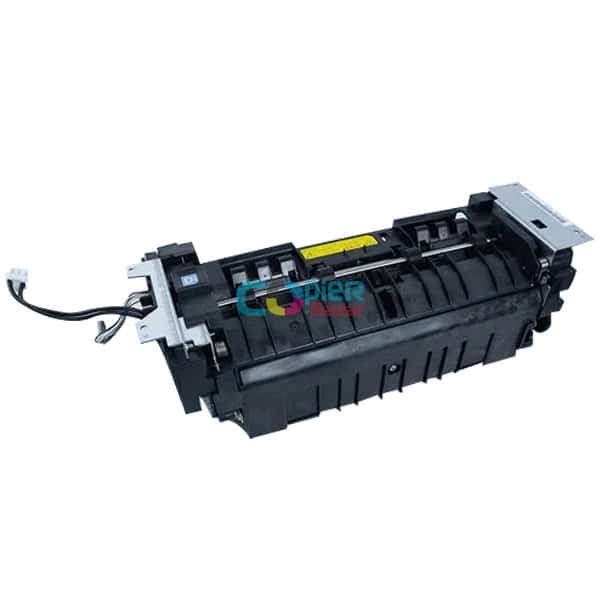
Fuser unit
Only if step 3, 5, 7, 8 or 9 ends with a fuser unit replacement. The exit sensor, fuser exit guide, lower exit roller, press roller and fuser belt are all handled in the manual by fitting a complete fuser unit.
Fixing drive gears
Only if step 2 finds the fuser roller drive gear damaged. The manual does not give a tooth count, so match the old gear against these listings before ordering.
 Fixing Drive Gear for Kyocera Ecosys 2040dn m2540dn m2640idw ( Set of 5pcs ) ( Best Quality )₹499
 Fixing Gear for Kyocera Ecosys 2040dn m2540dn m2640idw ( 10pcs ) ( Best Quality )₹800
 Fixing Drive Gear for Kyocera Ecosys 2040dn m2540dn m2640idw ( 40th ) ( Best Quality )₹200
 Fixing Drive Gear Tef for Kyocera Ecosys 2040dn m2540dn m2640idw ( 32th ) ( Best Quality )₹200
 Fixing Drive Gear for Kyocera Ecosys 2040dn m2540dn m2640idw ( 12th ) ( Best Quality )₹150
When should you call a technician?
Call a technician if paper keeps jamming or wrapping in the fuser after you have cleared it and set the right media type.
Questions people ask
- What does J4201 mean on a Kyocera M2040dn?
- J4201 on a Kyocera ECOSYS M2040dn is an exit sensor non-arrival jam: paper did not reach the exit sensor after the fuser in time. J4202, J4203, J4208 and J4209 are the same jam for other paper sources.
- Why does paper wrap around the fuser in my Kyocera M2040dn?
- The Kyocera manual checks the leading edge margin first. If it is under 4.0 mm, a technician adjusts the timing with U034; otherwise the press roller and fuser belt are cleaned or the fuser unit is replaced.
- Do I need a new fuser for J4201?
- Not always. Paper, media type, guides and cleaning come first. The manual replaces the fuser unit when the exit guide, exit sensor, lower exit roller or fuser belt cannot be put right.
- How do I safely remove paper stuck in the fuser?
- Switch off and let the printer cool, then open the rear cover and pull the sheet slowly in the direction it travels. Do not touch the fuser surfaces.