
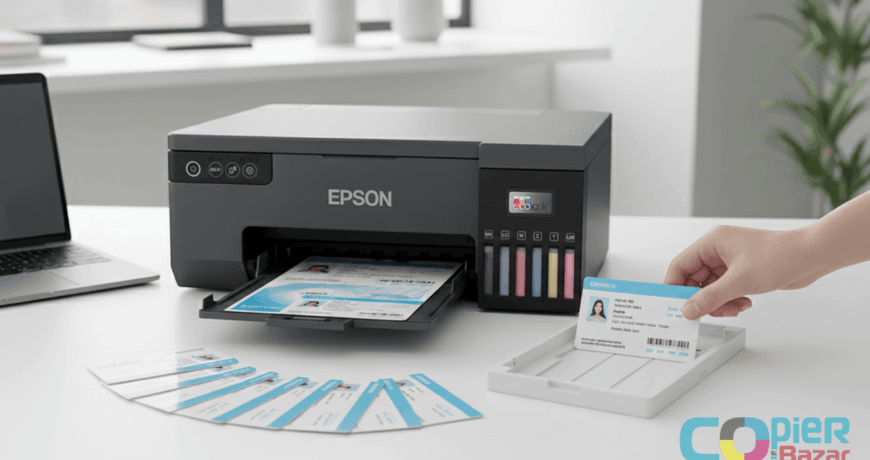
How to Print PVC ID Cards Using Epson L8050/L18050 – Complete Guide Leave a comment
How to Print PVC ID Cards
Printing professional-quality ID cards at home or office has become incredibly easy with Epson L8050 and L18050 printers. Whether you want to print Aadhaar cards, employee ID cards, student cards, or membership cards, this step-by-step guide will help you get started.
What You Need Before Starting
Before you begin printing PVC cards, make sure you have:
✅ Epson L8050 or L18050 printer (fully set up with ink installed)
✅ PVC card tray (compatible with your printer model – replaces the CD tray)
✅ Inkjet PVC cards (specially coated cards designed for inkjet printing)
✅ Computer with printer drivers installed
✅ Design software (Photoshop, Canva, or Epson Photo+ software)
Important: Regular PVC cards won’t work! You need specially coated inkjet PVC cards that absorb ink properly. Regular cards will cause smearing and poor print quality.
Table of Contents
Step 1: Set Up Your Epson Printer
If you haven’t already set up your printer:
- Unbox the printer carefully and remove all protective materials
- Install ink bottles following the instructions in the printer manual
- Connect to your computer using USB cable or Wi-Fi
- Download Epson drivers from the official Epson website
- Install Epson Photo+ software (recommended for PVC card printing)
- Run a test print on regular paper to ensure everything works
Step 2: Prepare Your PVC Card Design
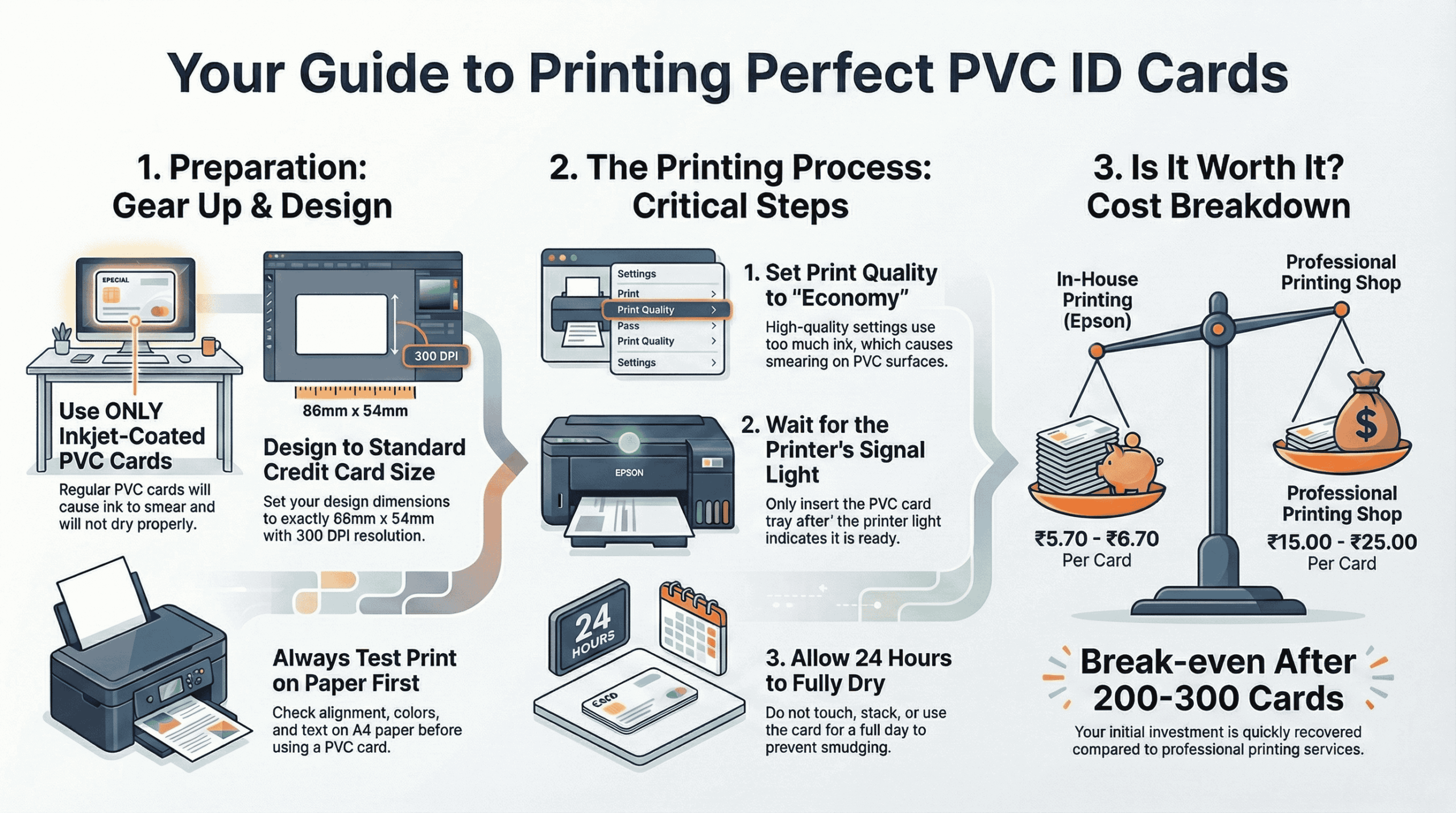
Design Size: Your card design should be exactly 86mm x 54mm (standard CR80 card size – same as credit card size)
Design Tips:
- Keep important information at least 3mm away from edges
- Use high-resolution images (300 DPI minimum)
- Check your design on A4 paper first before printing on PVC cards
- Save your design as JPG or PNG format
Popular Software Options:
- Epson Photo+ (Free – Best for beginners)
- Photoshop (Professional design)
- Canva (Easy online design tool)
- CorelDRAW (Advanced users)
Step 3: Install the PVC Card Tray
The PVC card tray replaces your CD/DVD tray:
- Remove the disc tray from under the output tray of your printer
- Clean the tray with a soft, slightly damp cloth – this is important to avoid dirty prints!
- Keep it ready – you’ll insert it after sending the print command
Important Warning: Never insert the tray while the printer is operating. Always wait for the printer’s indicator light to turn on.
Step 4: Load Your PVC Cards
- Place PVC card in the tray with the printable side facing UP
- Use slot 1 or slot 2 (or both if printing two cards)
- Make sure the card fits snugly in the slot without moving around
Pro Tip: The tray has two slots – you can print one card at a time or two cards simultaneously. For beginners, start with one card to avoid mistakes.
Step 5: Print Settings (Very Important!)
Open your design in Epson Photo+ or your design software:
In Epson Photo+:
- Select “PVC ID Card” as paper type
- Choose “Economy” quality (prevents smearing)
- Set size to 86mm x 54mm
- Enable “PVC ID Card Margins” if needed
- Select your printer (Epson L8050/L18050)
Print Quality Settings:
- Quality: Economy (NOT High Quality)
- Color Mode: Color
- Borderless: OFF (unless you want edge-to-edge printing)
Why Economy Mode? Higher quality settings use more ink which takes longer to dry and causes smearing on PVC cards.
Step 6: Send Print Command
- Click “Print” in your software
- Wait for the printer’s indicator light to turn ON
- Do NOT insert the tray yet!
Step 7: Insert the Card Tray
When the printer’s indicator light turns ON:
- Gently insert the disc/card tray into the printer
- Insert until the alignment marks match the front of the printer
- You may feel slight friction – this is normal, keep pushing gently
- The tray should click into place
Important: Insert the tray with the PVC card side (not disc side) facing the printer.
Step 8: Start Printing
- Press the printer’s start button (⏯ button)
- The printer will automatically start printing
- Wait patiently – printing takes 30-60 seconds per card
- The tray will automatically eject when printing is complete
Step 9: Remove and Dry the Card
- Pull out the tray carefully when it’s ejected
- Remove the printed card – Be careful! The ink is still wet
- DO NOT TOUCH the printed surface for at least 2-3 minutes
- Place the card flat to dry for 24 hours in a cool, dry place
Drying Guidelines:
- ✅ Dry for 24 hours before use
- ✅ Keep away from direct sunlight
- ✅ Do not stack cards while drying
- ❌ Don’t use a hair dryer or heat
- ❌ Don’t touch the printed surface until completely dry
Step 10: Print the Back Side (Optional)
If you want to print on both sides:
- Wait 5-10 minutes after printing the front
- Flip the card and place it in the tray with the blank side UP
- Follow Steps 6-9 again
- Make sure your design is oriented correctly for the back side!
Step 11: Clean Up
After printing:
- Remove the card tray from the printer
- Wipe the tray with a damp cloth (squeeze out excess water)
- Store the tray back under the output tray
- Close the output tray
Warning: If you don’t remove the tray and turn the printer on/off, it can damage the print head!
Common Problems and Solutions
Problem 1: Ink is Smearing
Solutions:
- ✅ Use Economy print quality instead of High
- ✅ Reduce print density in settings
- ✅ Use genuine Epson ink or high-quality compatible ink
- ✅ Make sure you’re using inkjet-coated PVC cards
- ✅ Don’t touch cards for 24 hours after printing
Problem 2: Card Tray Gets Ejected Immediately
Solutions:
- ✅ Wait for the indicator light to turn ON before inserting tray
- ✅ Make sure the tray is clean
- ✅ Insert the tray properly with alignment marks matching
Problem 3: Colors Look Faded
Solutions:
- ✅ Run print head cleaning utility
- ✅ Check ink levels
- ✅ Use Economy mode (reduces ink to prevent smearing)
- ✅ Ensure you’re using quality PVC cards with proper coating
Problem 4: Card Not Feeding Properly
Solutions:
- ✅ Check that the card is seated properly in the slot
- ✅ Make sure the tray is clean
- ✅ Use standard CR80 size cards (86mm x 54mm)
- ✅ Don’t use bent or damaged cards
Problem 5: Print is Blurry
Solutions:
- ✅ Run print head alignment
- ✅ Clean print heads
- ✅ Use high-resolution images (300 DPI minimum)
- ✅ Make sure card is flat in the tray
Best Practices for Perfect PVC Card Printing
1. Always Test Print First
- Print your design on A4 paper first
- Check alignment, colors, and text
- Adjust before wasting PVC cards
2. Use Quality Materials
- Good PVC cards = Better results
- Look for 800 micron thickness
- Nano-coating gives best ink absorption
- Get premium inkjet PVC cards here
3. Maintain Your Printer
- Run head cleaning every 2 weeks
- Use genuine Epson ink for best results
- Don’t let printer sit idle for weeks
- Clean the card tray after every 50 cards
4. Design Smart
- Use readable fonts (minimum 8pt size)
- High contrast colors work best
- Keep 3mm margin from edges
- Test colors on paper first
5. Storage Tips
- Store blank cards in a cool, dry place
- Keep cards in original packaging
- Don’t expose to direct sunlight
- Use within 2 years of purchase
Which PVC Cards Should You Buy?
For best results with Epson L8050/L18050, look for:
✅ 800 micron thickness (durable)
✅ Nano-coating or chemical coating for ink absorption
✅ Double-sided printable (if printing both sides)
✅ CR80 standard size (86mm x 54mm)
✅ Waterproof after drying
✅ Compatible with Epson inkjet printers
Recommended: Our Premium Inkjet PVC Cards are specifically designed for Epson L8050/L18050 printers. They feature:
- 800 micron thickness
- Instant-dry nano coating
- Pack of 230 cards
- Waterproof and durable
- Perfect for Aadhaar, ID cards, membership cards
Cost Analysis: Is It Worth It?
Initial Investment:
- Epson L8050 Printer: ₹25,000 – ₹35,000
- PVC Card Tray: ₹500 – ₹1,500
- Inkjet PVC Cards (230 pack): ₹850 – ₹1,200
- Total: ₹26,350 – ₹37,700
Per Card Cost:
- PVC Card: ₹3.70 per card
- Ink Cost: ₹2-3 per card
- Total: ₹5.70 – ₹6.70 per card
Compare to:
- Professional printing shop: ₹15-25 per card
- Dedicated card printer: ₹50,000 – ₹2,00,000
Break-even: After printing just 200-300 cards, you recover your investment!
Frequently Asked Questions
Can I use any PVC cards with Epson L8050?
No, you must use specially coated inkjet PVC cards. Regular PVC cards will cause smearing.
How long do printed cards last?
With quality cards and proper handling, 2-3 years. Keep them away from extreme heat and direct sunlight.
Can I print on both sides?
Yes! Print one side, wait 5-10 minutes, flip the card, and print the other side.
Why is my print smearing?
Use Economy print quality, reduce print density, and make sure you’re using inkjet-coated cards. Don’t touch cards for 24 hours.
Can I laminate the cards after printing?
Yes, but wait 24 hours for complete drying first. Lamination adds extra durability.
What size should my design be?
Exactly 86mm x 54mm (standard CR80 credit card size).
Can I use third-party ink?
Yes, but quality matters. Poor quality ink will cause smearing and fading. Genuine Epson ink gives best results.
How many cards can I print with one ink set?
Approximately 300-400 cards with one full set of Epson ink bottles (actual number depends on your design density).
Conclusion
Printing PVC ID cards on Epson L8050 or L18050 is simple once you understand the process. Follow these steps carefully:
- Use proper inkjet PVC cards
- Set print quality to Economy
- Wait for indicator light before inserting tray
- Don’t touch cards for 24 hours
- Clean the tray regularly
With practice, you’ll be printing professional-quality ID cards in minutes!
Ready to start? Get your premium inkjet PVC cards here and start printing today!
Need help? Have questions about PVC card printing? Leave a comment below or contact us at +91 88899-15080 (10am to 8pm).
Found this guide helpful? Share it with others who need to print ID cards!
