
Kyocera ECOSYS M2040dn paper jam: first checks before you look at the code
Applies to: Kyocera ECOSYS M2040dn, Kyocera ECOSYS M2135dn, Kyocera ECOSYS M2635dn, Kyocera ECOSYS M2635dw, Kyocera ECOSYS M2735dw, Kyocera ECOSYS M2540dn, Kyocera ECOSYS M2540dw, Kyocera ECOSYS M2640idw
Quick answer
When a Kyocera ECOSYS M2040dn keeps jamming paper, the most likely cause is the paper itself or how it is loaded. First close the front cover firmly, then fan the stack, turn it over end to end, set the width guides and confirm the media type in the system menu. Worn rollers and sensors come after that.
What is happening?
A paper jam message means a sheet did not reach, or did not leave, a sensor in the expected time, so the printer stops at once and shows the jam location and clearing steps on the panel. Before working through a single J code, Kyocera lists general checks that apply to every jam: covers, paper condition, loading, guides, rollers, sensors, settings, static and storage. The same code and steps apply to the ECOSYS M2135dn, M2635dn, M2635dw, M2735dw, M2540dn, M2540dw and M2640idw, which share one Kyocera service manual.
What causes it?
Front cover not latched
If the front cover is not fully engaged, the machine can report a jam. Opening and closing it is the first check.
Paper not fanned or edges damaged
Sheets that stick together, or a stack with crushed or damaged cut edges, feed badly.
Wavy, curled or damp paper
Paper that has taken on moisture curls or waves in the fuser area and jams. Storing paper in a damp place keeps causing this.
Paper out of specification
Unsupported paper, or paper with foreign matter stuck to it, catches in the path.
Paper loaded badly or guides set wrong
Guides that do not match the paper size cause skew, creases and jams, and can make the printer read the wrong size.
Wrong media type setting
If the media type set in the system menu does not match the real paper thickness, separation and feeding can fail.
Bits of paper, dirt or a faulty guide in the path
A scrap of paper, a burr or toner dust on a guide or separation needle can catch the next sheet. A guide moved by a solenoid can also stick.
Dirty or worn rollers and pulleys
Paper dust and toner on rollers reduce grip. Worn rollers, a slipping clutch, dirty shafts and bushings, or a spring that has come off all lower feeding force.
Sensor problems
A sensor actuator that is stuck or has lost its spring, a dirty sensor or a loose sensor can give a false jam.
Leading edge margin too small
If the leading edge margin is too small, paper can wrap around the fuser. A technician checks this with the U034 test pattern.
Static electricity
In very dry rooms with long print runs, static can build up if the exit discharge sheet or the transfer area metal guide is not grounded.
What can you check yourself?
- 1
Open and close the front cover
Open the front cover and shut it firmly until it clicks.
- 2
Follow the panel guide
The operation panel shows where the jam is and how to clear it. Step through the guidance screens and remove the sheet in the direction the paper travels.
- 3
Fan and turn the stack
Take the paper out, fan it well and put it back the other way round, top edge to bottom. Remove any sheet with a bent or crushed edge.
- 4
Use paper within specification
Damp, wavy, curled or out-of-specification paper is a common cause. Use fresh, dry paper of a supported type and keep spare paper in a dry place.
- 5
Set the paper guides
Slide the width guides (and length guide) so they touch the stack for the size you loaded. Do not fill above the limit mark inside the tray.
- 6
Match the paper settings
In the system menu, make sure the paper size and media type set for that tray match the paper actually loaded.
- 7
Store paper properly
Keep paper in its wrapper in a dry place, not next to a window, AC vent or wet wall.
- 8
Try again
Close all covers, switch on and print a few pages. If the same code keeps coming back, stop and call a technician.
Steps for a technician
- 1
Check the path, guides and separation needle
Remove scraps, foreign objects and burrs from the conveying path. Clean toner or paper dust off the guides and the separation needle with a cloth or brush.
- 2
Check guides moved by a solenoid
Move the guide by hand. If it does not move smoothly, refit it and replace it if that does not help. Run a test print and listen for the guide working; if it still fails after refitting, replace the solenoid.
- 3
Clean or replace rollers and pulleys
Clean paper dust, toner or debris off the rollers and pulleys. Replace any that are worn or no longer round.
- 4
Check the clutches
Run a test print and listen for the motor and clutch. Refit a clutch that is loose or dirty and reconnect its connector; replace the clutch, or the unit that carries it, if it still fails. If the motor itself is the problem, follow the specific jam code.
- 5
Clean shafts and bushings, refit springs
Clean dirty roller shafts and bushings that add load. Refit any spring that has come off or no longer presses its roller or pulley.
- 6
Check sensors
Refit a stuck or loose actuator or spring and replace it if bent. Clean a dirty sensor surface. Reconnect or replace a faulty sensor.
- 7
Check the leading edge margin
Print the U034 test pattern. If the margin from the leading edge is outside 4.0 mm (+1.5/-0.0 mm), and fuser jams occur when the check line at 20 mm (+/-1 mm) is missing, adjust [Lead] in U402.
- 8
Check grounding
In dry rooms with long runs, confirm the discharge sheet at the exit and the metal guide at the transfer section are grounded, and refit them if needed.
Parts for this error
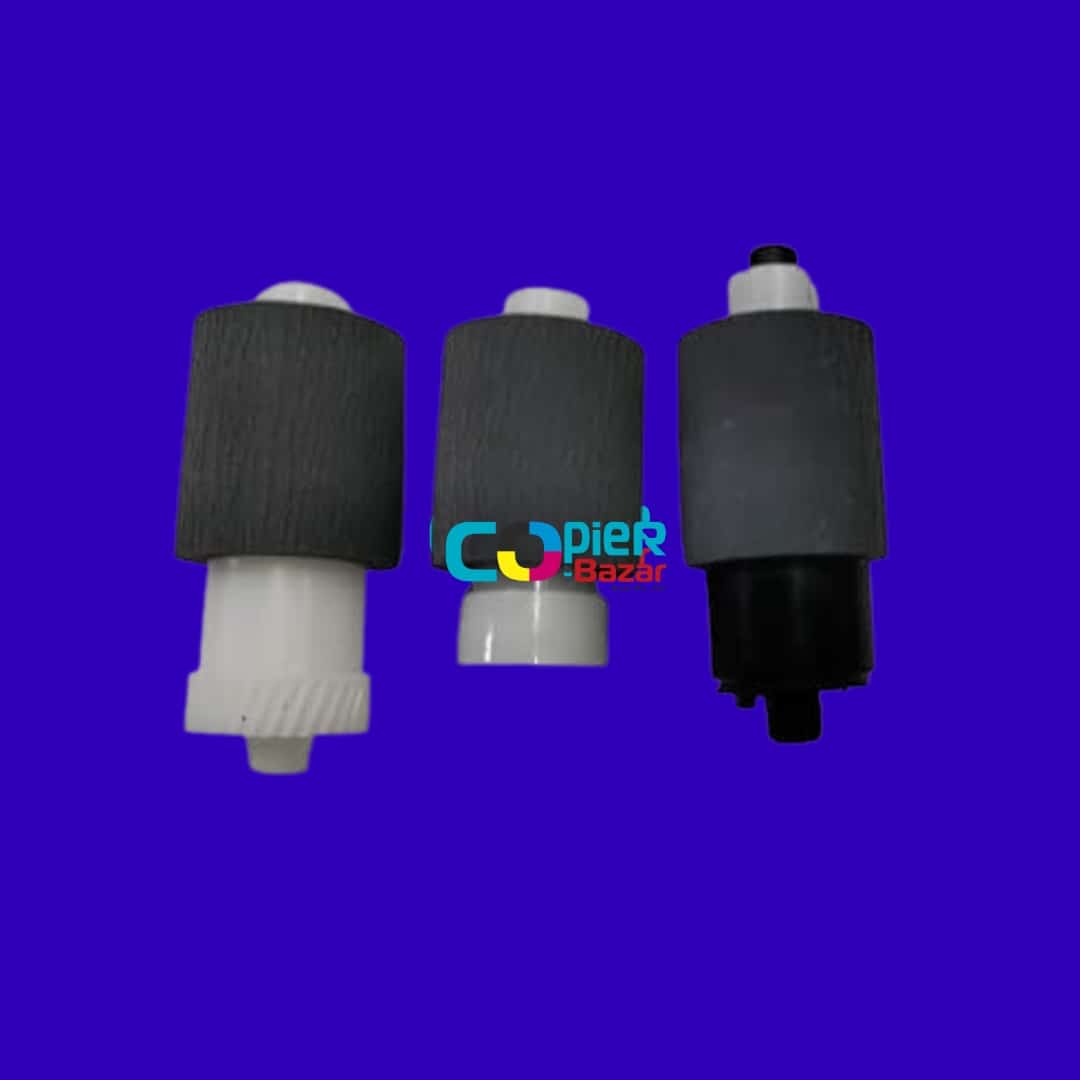
Pickup, feed and retard rollers (set of 3)
Only if the roller check shows the cassette rollers are worn or out of round. The store listing is a set of three for the main cassette and does not name each roller, so compare it with the old parts first.
When should you call a technician?
Call a technician if jams continue after you have checked the cover, the paper, the guides and the media setting, or if the same J code keeps returning from one place.
Questions people ask
- Why does my Kyocera M2040dn keep jamming paper?
- Most repeat jams on the Kyocera ECOSYS M2040dn come from the paper: damp, curled or out-of-spec sheets, a stack that was not fanned, or guides that do not match the size. Worn or dirty rollers and sensors are checked after that.
- What should I check first when a Kyocera printer shows a paper jam?
- Close the front cover firmly, clear the sheet the panel points to, then fan and reload the paper upside down and set the width guides. Also check that the media type in the system menu matches the paper.
- Can damp paper cause jams in a Kyocera M2040dn?
- Yes. Kyocera lists damp, wavy or curled paper as a cause of jams in the fuser area, and advises keeping paper in a dry place.
- Where is the paper jam on a Kyocera M2040dn?
- The panel shows the location: cassette 1, 2 or 3, the MP tray, inside the machine, inside the rear cover or in the document processor. It also shows the clearing steps one screen at a time.